▶ Moderan > Activities
A Centralized Way to Track Tasks, Reminders, Documents and Interactions.
The Activities module brings together all tasks and scheduled interactions across your portfolio into a single unified view. It is designed to simplify daily workflows, improve team coordination and view all Interactions & Files content in one place.

Where Activities come from?
Overview of Activities tab
How to edit the activities?
Advanced Filtering, Grouping, Exporting
Email Notifications
Common Use Cases
Where Activities come from?
Activities gathers relevant items from the Interactions & Files block, which is available in the following card views:
▶ Contracts > Requests, Rental Contracts, and Service Contracts
▶ Assets > Buildings
▶ Contacts > Organizations
Instead of opening each contract, organization, or building individually to check your next steps, Activities consolidates all recorded items from the Interactions & Files blocks into one place.
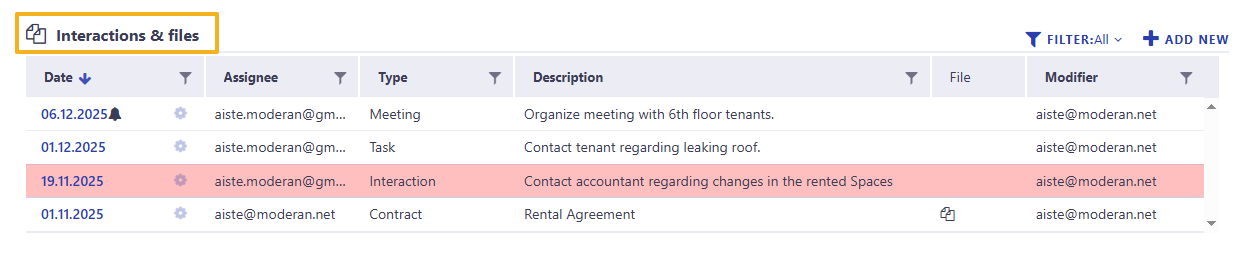
Read more about Interactions & Files
Overview of Activities tab
When you go to the Activities tab, by default you'll see active items assigned to you.
The assignee field is pre-filled with your email address and the Status field is by default To do + overdue.
You can adjust the default view by using filters:
- Time period - custom range or you can use pre-defined options: Last month, This month, Next month, This quarter, Last quarter
- Status:
- All
- To do + overdue - all tasks that are not Done
- To do - the deadline is today or in the future
- Overdue - the deadline has passed, but the task is not completed
- Done
- Assignee - you can select yourself, a specific colleague, or an entire team
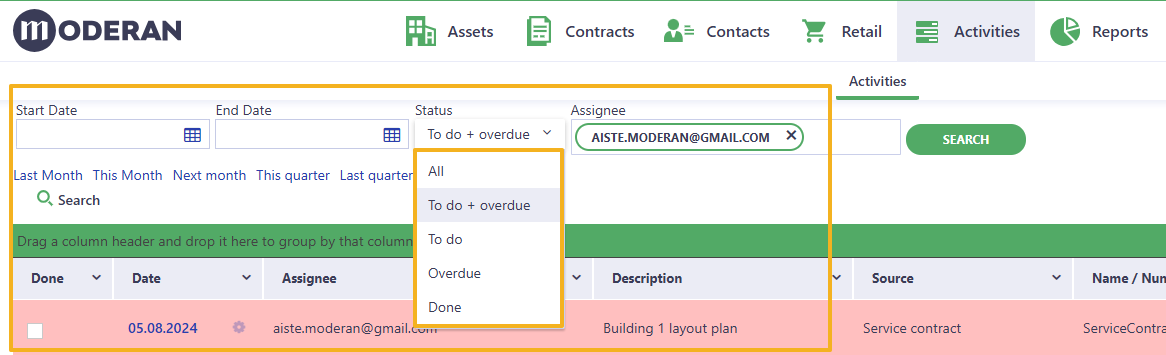
Hint: Filtering by assignee allows you to switch between a personal overview and a broader team perspective.

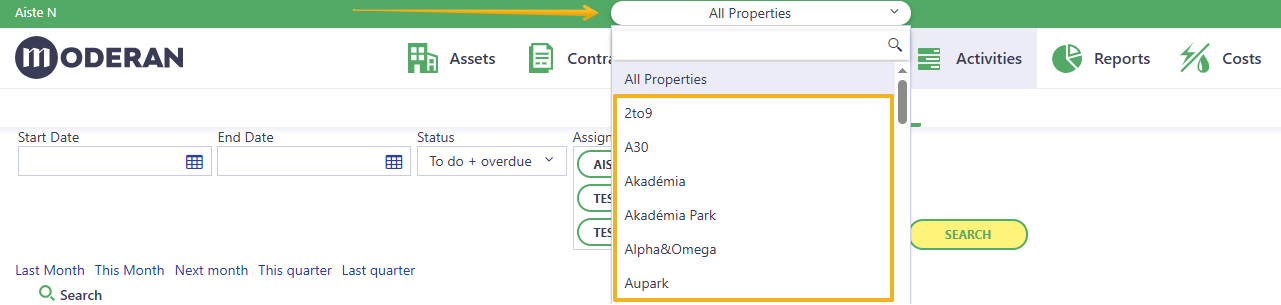
Using main Property filter provides opportunity to get activities for individual property, groups of properties or the whole portfolio:
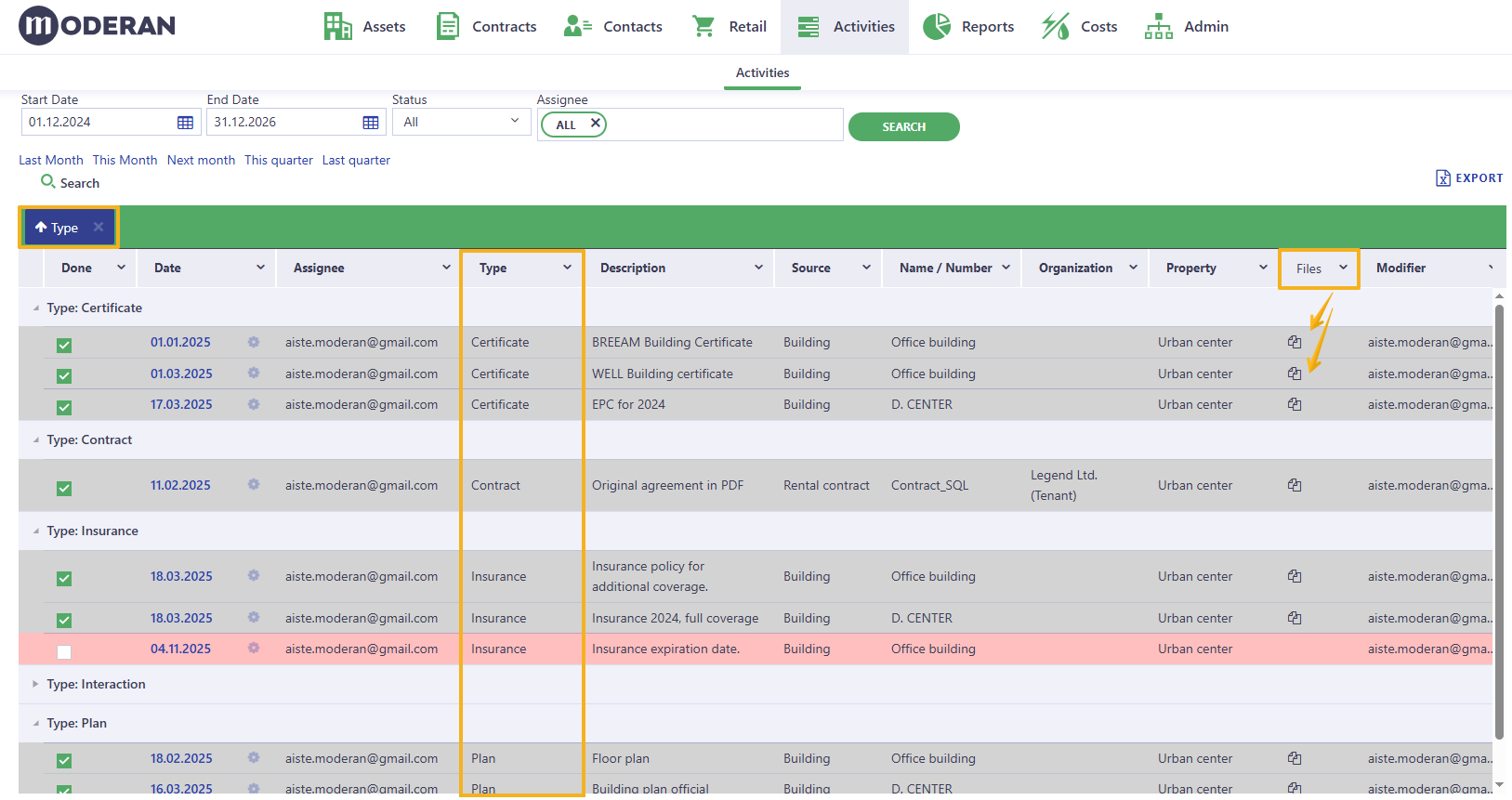
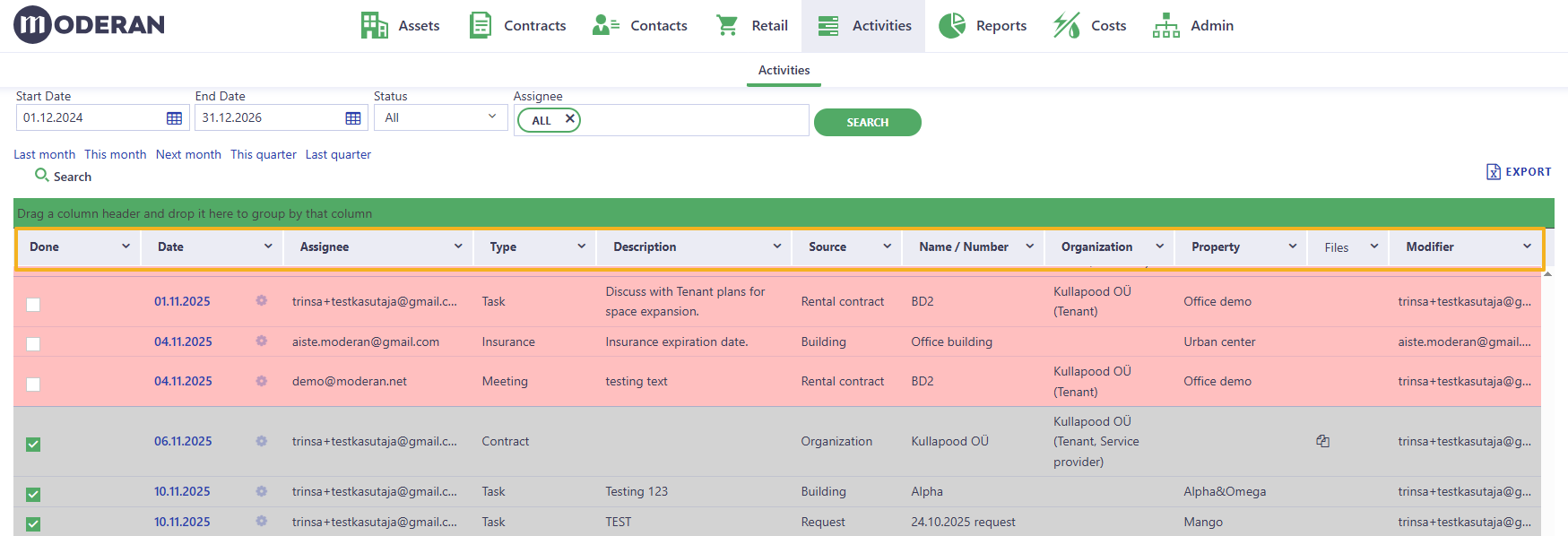
Each Activity entry contains essential information, such as:
- Done - if marked Yes, the Activity status is Done; if left unmarked the Activity status is either To do or Overdue (depending on the Date)
- Date - marks due date of the Activity
- Type - Interaction, Task, Contract, etc.
- Description - description and notes of the Activity
- Source - where the activity was created (in Rental/Service Contracts, Organization/Building cards)
- Name / Number - of the Building/ Organization/ Contract
- Organization - if applicable, this column shows related Organizations (Tenants, Service providers) to this activity
- Property - indicates in which Property the activity was created
- Assignee - person responsible for the Task (any Moderan user in your organization can be assigned to the task)
- File - File or Link, accessible directly from the Activities view
- Modifier - person who created and/or modified the Task (last person, who modified the entry).
NB! Users/Viewers only see tasks and interactions related to the Properties and Moderan sections (e.g. Rental Contracts or Buildings) they are allowed to access. Admin users can see all activities.
You can read more about access restrictions here
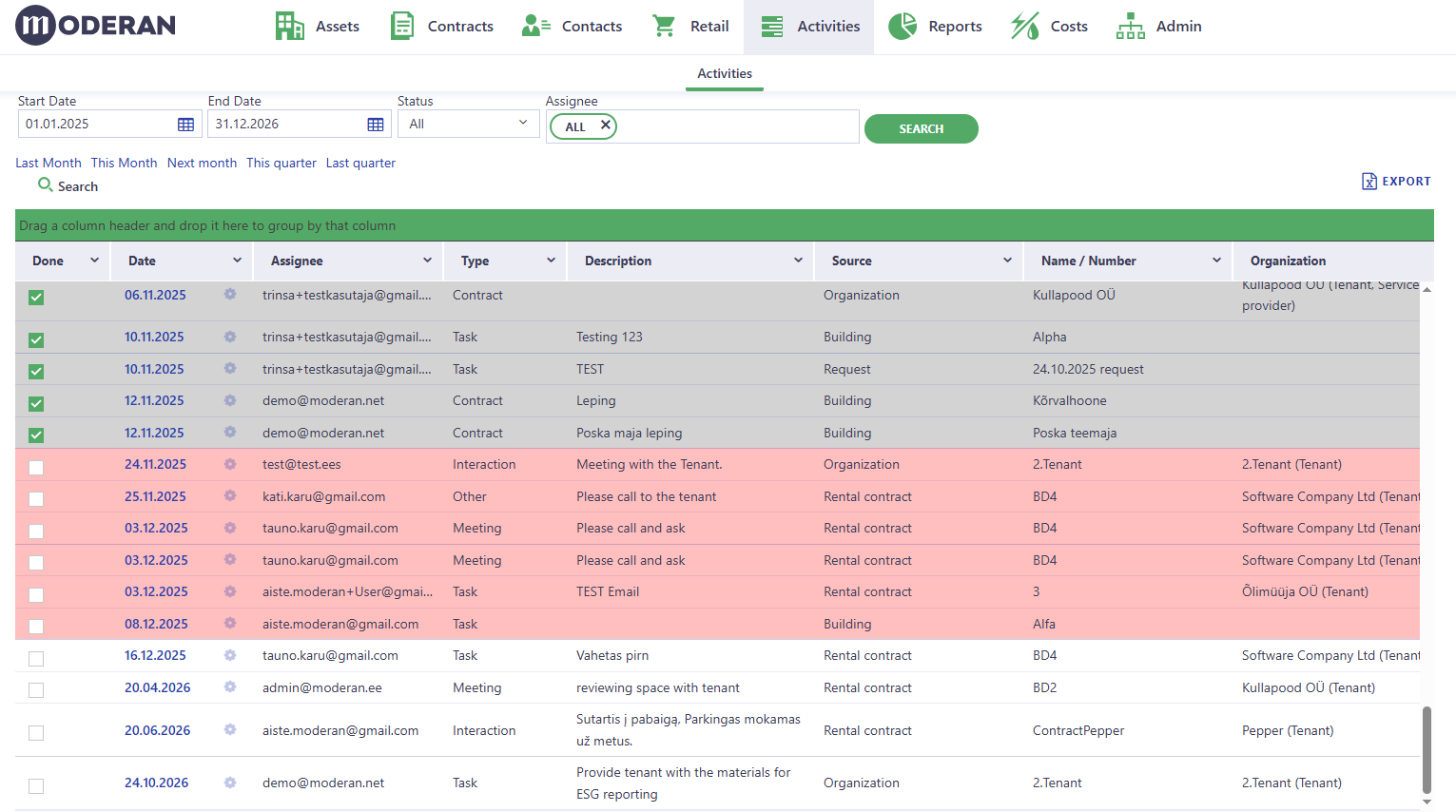
 In the Activities list colors represent different statuses of the activities:
- White lines - To do
- Pink lines - Overdue
- Grey lines - Done
How to edit the Activities?
If you want to edit the Activity line: modify the Description, change the date of Activity, re-assign to another person, add a file or mark it as Done - simply click on the Date. You will be automatically re-directed to the Interactions & Files block where this specific Activity has been entered (Building/Organization/Contract card).
Click on the date again in the Interactions & Files block and modify any relevant information.
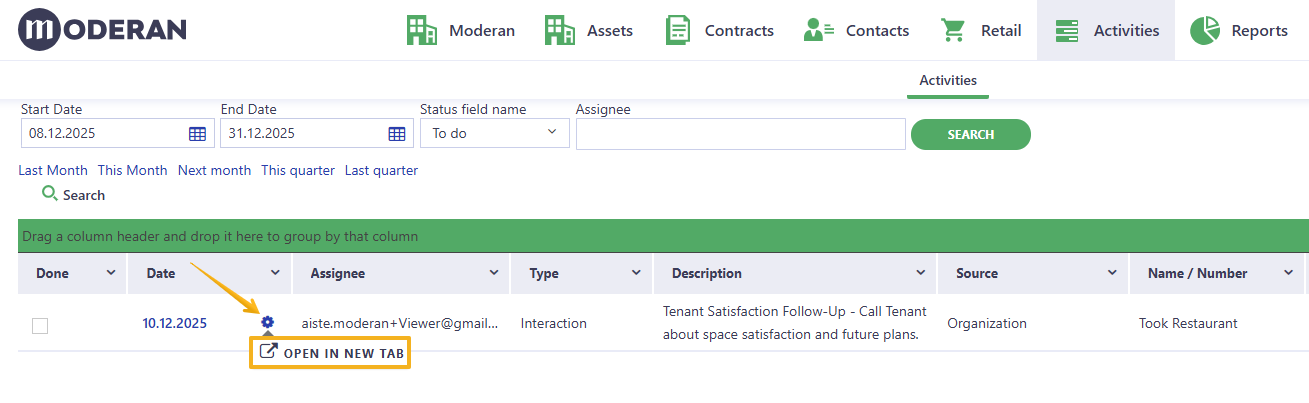
Hint: to have easier workflow while working with the tasks assigned to you, we added an option to open the tasks in a new tab. You can find this option under cog icon next to the Date:
Advanced Filtering, Grouping, Exporting
As any other view in Moderan, the Activities grid can be re-arranged to support easy workflow.
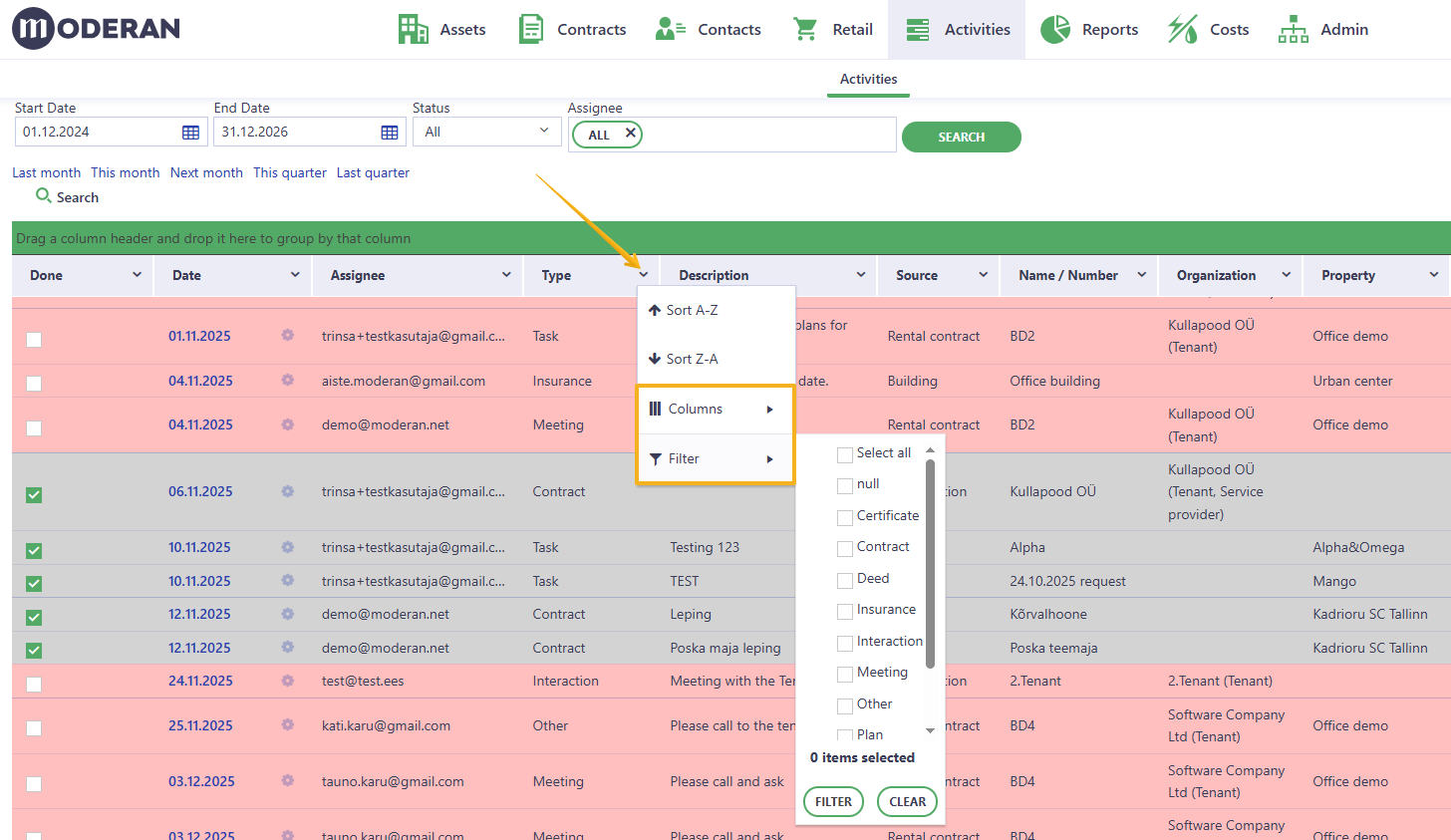
- You can move the Columns in the order you prefer and add/hide them (Moderan will memorize the setup for your next visit).
- You can use the filtering option in each column.
- Use the Grouping bar to group by any relevant column or multiple columns:
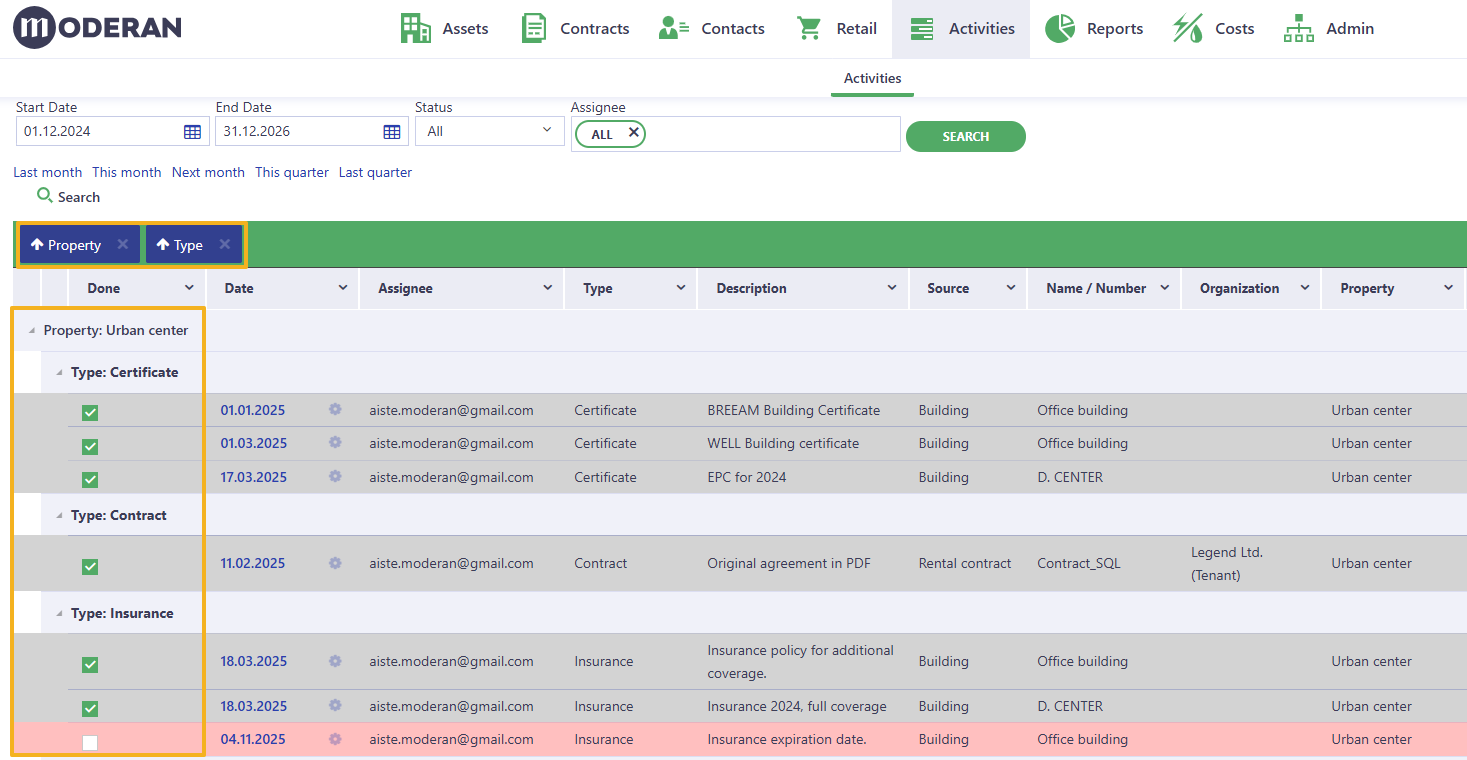
- Export the Activities list view as an Excel file.
Read more detailed instructions in the article Your Moderan view: I want to adjust what I see
Email Notifications
To ensure timely task handling, Moderan sends automatic email notifications:
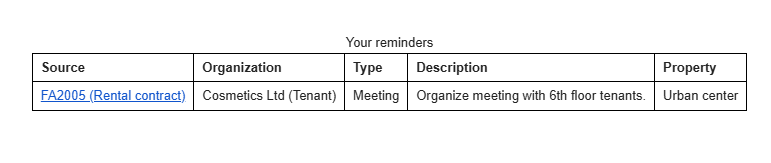
- Deadline reminder - a notification is sent to assignee on the due date of the Activity
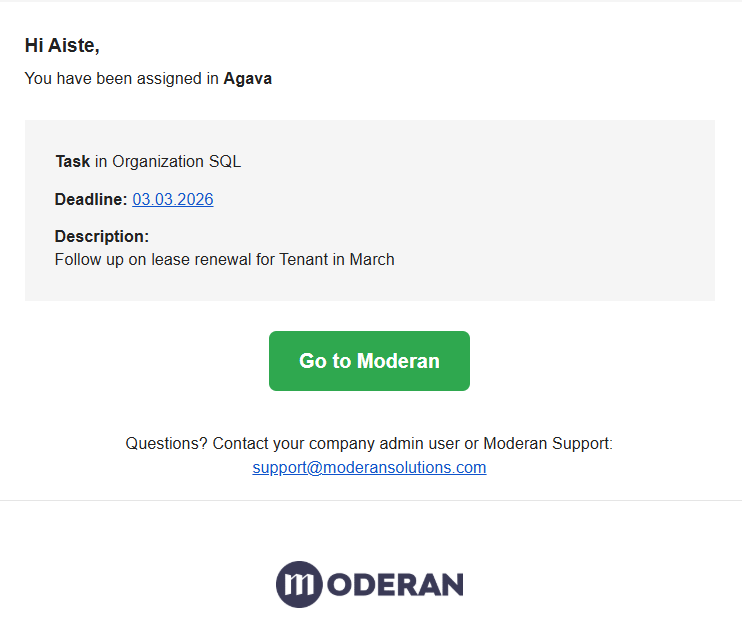
- Assignment notification. If you assign the task for someone else and the date is today or later, that person gets an email notification when you save the task.
Common Use Cases
Communication History
All emails, calls, notes, and meetings can be saved in one place (e.g. Rental Contracts or Organization card).
This way, in the Activities report, it is easy to see all interactions with one Tenant, such as previous complaints, performed tasks, meeting minutes, etc.
Tracking and reporting tasks
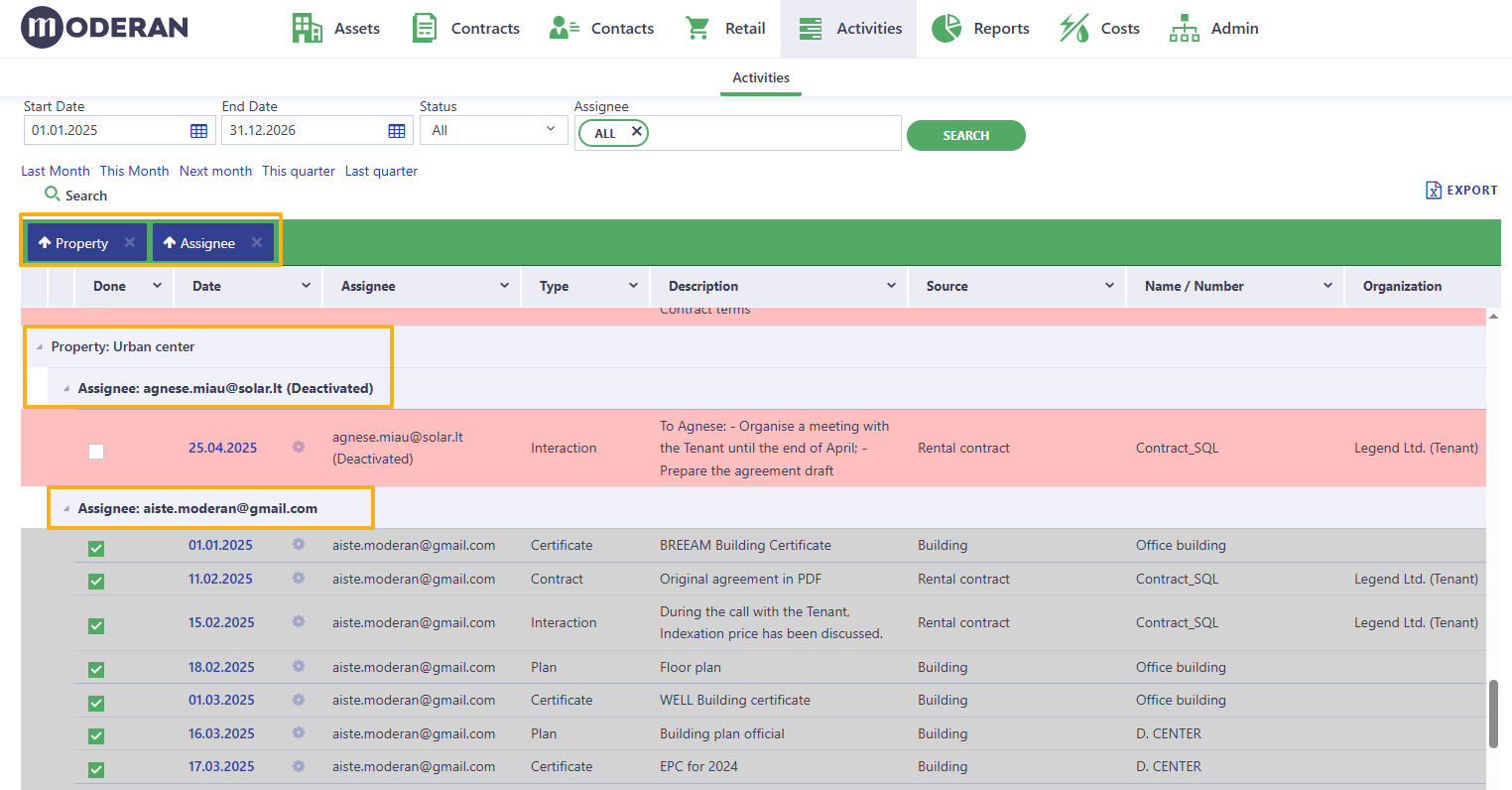
You can group all the tasks Monthly/Quarterly/Yearly for one user or a whole team and compare the results by the Properties in one view.
Overview of the Documents
All documents (Contracts, Certificates, Deeds, Insurance) can be grouped (by Type) for better overview and accessed directly from the Activities page.